Deleting files is not a diagnosis. First establish which account, which storage and which service the warning refers to. This guide helps you build a short evidence trail before making changes.
Before deleting anything: confirm that important files have an independent backup you can actually open. A second view of the same synced library is not a separate copy. Stop if you cannot tell which copy will survive.
1. Separate phone space from cloud space
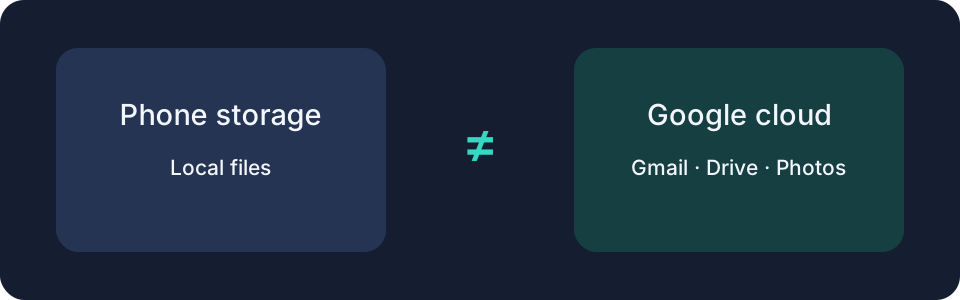
Your phone’s available space and your Google Account quota are different measurements. Record both, and note the email address shown in the Google service. If you use several accounts, check each service is showing the one with the warning.
| What you see | What to check |
|---|---|
| Phone storage warning | Device storage settings and local files |
| Google Account storage warning | Account usage across Gmail, Drive and Photos |
| Drive folder looks small on your computer | Cloud usage, not just downloaded files |
Google Photos’ device-space cleanup removes local copies already backed up; it does not reduce cloud usage. Those photos then need an internet connection in Photos and may no longer appear in the built-in gallery. Read the device-space instructions before using this feature.
2. Find the service taking space
Open the Google storage manager while signed into the affected account. Write down Gmail, Drive and Photos usage, plus any backup or other-storage category shown. Start with the largest category rather than removing random small files. Google’s storage overview explains which content counts.
Keep a simple note: account, service, usage before, action and time. This makes it easier to distinguish a delayed counter from a new upload.
3. Inspect Gmail without deleting messages
Paste this into Gmail search:
in:anywhere has:attachment larger:10M
It finds messages larger than the specified threshold that have attachments, including Spam and Trash. Open the results and inspect them; search itself removes nothing. Save important attachments independently and keep messages needed as records. See Google’s search operators.
Gmail messages in Spam and Trash also count toward storage. Inspect them rather than assuming that moving mail to Trash has freed space.
4. Inspect Drive and its trash
Use Drive’s storage view to identify large files. Check who owns them: removing a file shared by someone else does not reduce your own quota. Files in Drive trash still use space until permanently removed. Follow the Drive deletion guide only after verifying your backup.
Sync warning: deleting in a synced Drive location can propagate to other locations. Consider shared access too: permanently deleting a file you own can remove collaborators’ access.
5. Check Photos before touching the library
Review large videos and the backup account first. Some older Storage saver photos uploaded before June 1, 2021 did not count toward quota; deleting those cannot free counted space. Compare the item information with the quota rules.
Photo deletion can affect devices. Deleting through Google Photos can also remove device copies and copies on devices with backup enabled. Do not use deletion as a trial. Read Google’s photo deletion instructions for your platform first. Cloud-only removal requires a different workflow.
6. Account for backups and other storage
Inspect the backup section in the storage manager, including Android and WhatsApp backups where present. Identify the device, date and purpose of each backup. An old phone’s backup might still be your only recovery option. Removing a WhatsApp backup can destroy your restore option; unchanged backup settings can create a new one later. Consult Google’s storage management guidance.
If you need an archive, Google Takeout can export data. Download the completed archive, check its contents and open representative files from an independent location. Exporting is not the same as deleting the originals, and an archive you have not checked is not proof of recoverability.
7. Recheck instead of repeatedly deleting
After substantial deletion, Google says usage can take up to 48–72 hours to update. During that time, compare against your note and check whether new uploads or backups are adding data. Avoid repeated irreversible cleanup while the counter catches up.
If usage still does not make sense, prepare the account, service totals, timestamps and actions for Google support. Do not share passwords or private files publicly. The aim is to identify the cause—not to keep deleting until a number changes.
Official sources & references
Sources checked: